

Want some great Photoshop tutorials to enhance your Photoshop skills? Here’s a great list of 70+ great tutorials for Adobe Photoshop.
Showing posts with label photoshop. Show all posts
Showing posts with label photoshop. Show all posts
Thursday, January 29, 2009
Saturday, May 17, 2008
Download 'The Photoshop Anthology' eBook for free
 Sitepoint is giving away free ebook version of Corrie Haffly’s "The Photoshop Anthology Web Design Tips, Tricks & Techniques", normaly worth $26.37 (paperback). About the book, sitepoint says
 It’s brimming with tried and tested real-world Photoshop solutions that will addYou can check it on Amazon here
impact to your next web design project. If you’ve ever been stuck for
inspiration, have puzzled over just how to create a shiny aqua-style button, or
wanted to create that seamlessly tiling background image you saw on a site
recently, you need to download this book.
Download the ebook for free
Saturday, December 29, 2007
Make a text follow a path in Photoshop
Create a new image and select the pen tool by pressing 'p' on the keyboard or clicking on the pen tool icon (red circled in the image below) in the toolbox. Select a type of pen you are comfortable with using. Here I selected the Freeform Pen Tool.
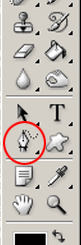
Now draw the path you want with the pen tool.

After you've drawn the path, select the Type tool by pressing 'T' or clicking on the Type Tool
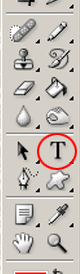
Click on the beginning of the path with the Type tool selected, and start typing your text, you can also change text size, colors etc. So here's the final text.
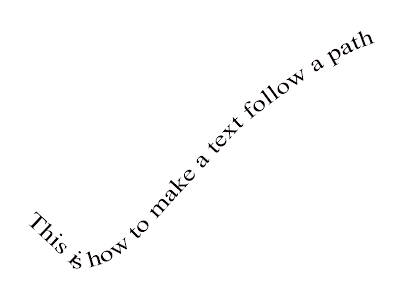
You can also watch a video of this tutorial below ..
Thursday, December 27, 2007
How to create a Xion skin in Photoshop
If you don’t have Xion then you can download it here http://xion.r2.com.au/index.php?page=download.
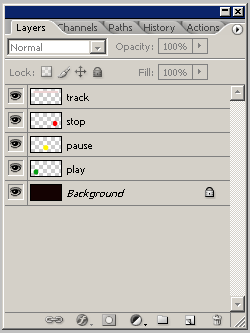
Creating a Xion skin in Photoshop is the easiest way one can create a skin for any application. Xion skins are nothing but a PSD file which can be created with Adobe Photoshop, GIMP or PaintShop Prop etc with specially named layers. The different layers in the PSD file identify the different components of the skins. Like the play button would be drawn in a layer named ‘play’. Anyway it’s easy enough to build your first skin within minutes, So let’s get started with an example.
Create a new image in Photoshop with the size you want. Here I have created an image with 250x120 pixels. Choose any background color or any background image and create the background.

Then create a new layer and then select the elliptical marquee tool and draw a circle and fill it with color. Name this layer as ‘play’.

Now create other layers like ‘pause’, ‘stop’ etc similarly.
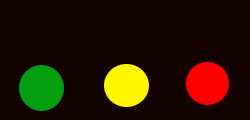
Now add another layer and draw a rectangle like in the image below. Name this layer ‘track’. This is where the track info would be displayed.
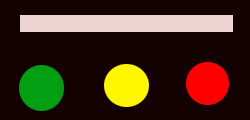
Now save the file with a .psd extension and open it with Xion or just drag the PSD file on Xion. There it is your first Xion skin. The below image shows the layer pallete for reference.
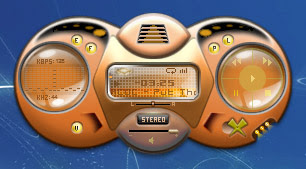
Well, I this is just a demo of how to make skins for your Xion player yourself with photoshop and I have not concentrated on the quality of the skin. But you can create some very impressing skins using this. Like the skin shown below which you can download here.
All the components and functions that a music player typically uses are available with Xion also and they all can be implemented in a Xion skin using photoshop layers. The concept is simple; every layer represents a different component. Just like in this example one layer is play button, another is pause like that. But you have to be careful while naming the layers as it is case sensitive. The complete layer reference can be found here.


